Quick demo of simple Selenium program

Selenium Course Details Summary:
1. Integrated Development Environment (Eclipse IDE)
2. Programming language (Java, OOPS)
3. Selenium Automation Tools
3.a. Selenium IDE
3.b. Selenium WebDriver
3.c. Selenium Grid
4. Java Framework (JUnit, TestNg)
5. Automation Frameworks (Modular, Keyword Driven, Data Driven, Hybrid)
6. Design Pattern (Page Object Model, Page Factory)
7. Reporting (TestNG Reports, Extent Reporting)
8. Build Automation Tools (Maven, Ant)
9. Log4j Logger
10. Selenium Object Repository
11 Practice Selenium with Live Project (Demo Financial Online System)
12. Selenium Interview Questions and Answers

Selenium Training Course Contents:
Integrated Development Environment (Eclipse IDE)
1. Download, Install (Installing the JDK) and configure Java
2. Download, Install and configure Eclipse
3. Use Eclipse IDE to teach Selenium Automation
Java
1. Introduction
2. Running a simple Java Program
3. Getting User Input
4. Math Operators
5. Increment Operators
6. Logical Operators
7. Switch Statement
8. While Loop
9. Class
10. Use Methods with Parameters
11. Constructors
12. Conditional Operators
13. for Loops
14. do while Loops
15. Random Number Generator
16. Variables/Arrays/Datatypes/Conditional Statements
17. Public, Private and this
18. Set and Get Methods
19. toString
20. Static
21. Final
22. Creating Files
23. Writing to Files
24. Reading from Files
25. Exception Handling
26. Regular Expressions
27. Operator Precedence
28. Java Exceptions (Try…Catch)
Java OOPS –
1. Inheritance/Interfaces/Polymorphism
2. Abstraction/Encapsulation
3. Util/List/Exceptions
4. Constructors/Access Specifiers
Selenium IDE
1. Use Selenium IDE GUI recording/playback features
2. Install Node JS. Then, ran Selenium IDE script from command line with selenium-side-runner utility in Online Selenium Grid (in lambda test site)
Selenium WebDriver
1. Setting up JUnit and Selenium WebDriver
2. Writing a Basic Script Using Selenium WebDriver
3. Writing a Basic JUnit Script Using Selenium WebDriver
4. Locators (By ID, By name, By class name, By tag name, By link text, By partial link text, By CSS, By XPath)
5. FindElement/FindElements
6. Handling Listbox/Windows/Frames/IFrames
7. Handling Alerts/Data Picker
8. Synchronization – Selenium Wait (Implicit Wait and Explicit Wait)
9. Mouse Actions
10. Keyboard Actions
11. Upload a File
12. Capture Screenshot
13. Parameterize using Excel
14. Drag and Drop
15. Checkbox/Drop downs/Radio buttons
16. JAvascriptExecutor
17. Selenium Expected Conditions
18. Navigation Methods
19. WebDriver Interface
20. Handle Web Table
Selenium Grid
1. Multi Browser Testing
Locator Tools
1. XPath finder tools like True Path/Ruto/Chro Path
Automation Frameworks
1. Modular Framework/Keyword Driven Framework/Data Driven Framework/Hybrid Framework
Java Framework (TestNG)
1. Writing a Basic TestNG Script Using Selenium WebDriver
2. Annotations: @Test,@Before/@AfterTest,@Before/@AfterClass
3. Cross Browser Testing/Data Provider/Listeners
4. Parameterization/Parallel Execution of Tests
5. TestNG Hard and Soft Assert
6. Executing the Failed Tests
Design Pattern
1. Page Object Model Introduction/Page Object Model (POM)
2. Page Factory
Build Automation Tool
1. Maven/Dependencies/plugins/profiles/Ant
Log4j Logger
1. Use Log4j Logger to do log levels (All, DEBUG, INFO, WARN, ERROR, FATAL, OFF) with Selenium Web driver
Reporting
1. TestNG Reports
2. Extent Reporting
3. Cucumber Reporting
Additional (Extra):
1. Interview Questions
2. Selenium Interview Questions and Answers
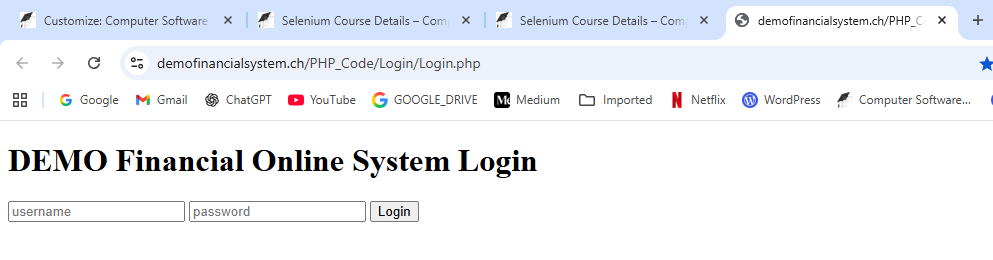
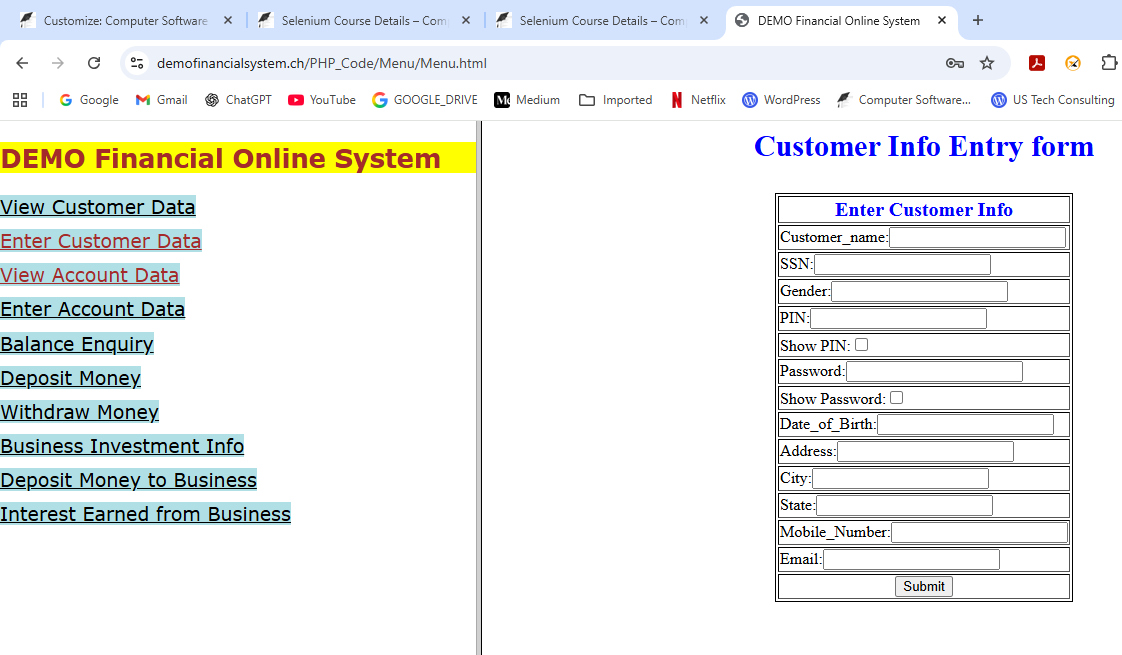
Practice Selenium with Live Project (Demo Financial Online System)
Automate following scenarios in Demo Financial Online System with Selenium:
1. Login to the Demo Financial Online System with valid User Name and Password
2. Create new Customer
3. Create new Account (Example: Checking or Savings Account)
4. Deposit money
5. Withdraw money
6. Balance Inquiry
7. Invest in business
Below is the login URL for the demo financial online system
https://demofinancialsystem.ch/PHP_Code/Login/Login.php
 Computer Software Training College, USA